
How to ask customers for Google reviews (without breaking the rules)
A simple process for asking every customer for a Google review: when to ask, copyable message wording, what Google’s policy rules out, and how to reply to reviews.
Ask every customer, soon after the job is done, in the same way, with a direct link or QR code to your Google review form. Keep the request short and neutral. Do not offer anything in return, and do not ask only the customers you expect to be happy: Google’s policy rules out both. Then reply to reviews, including the critical ones, calmly and specifically.
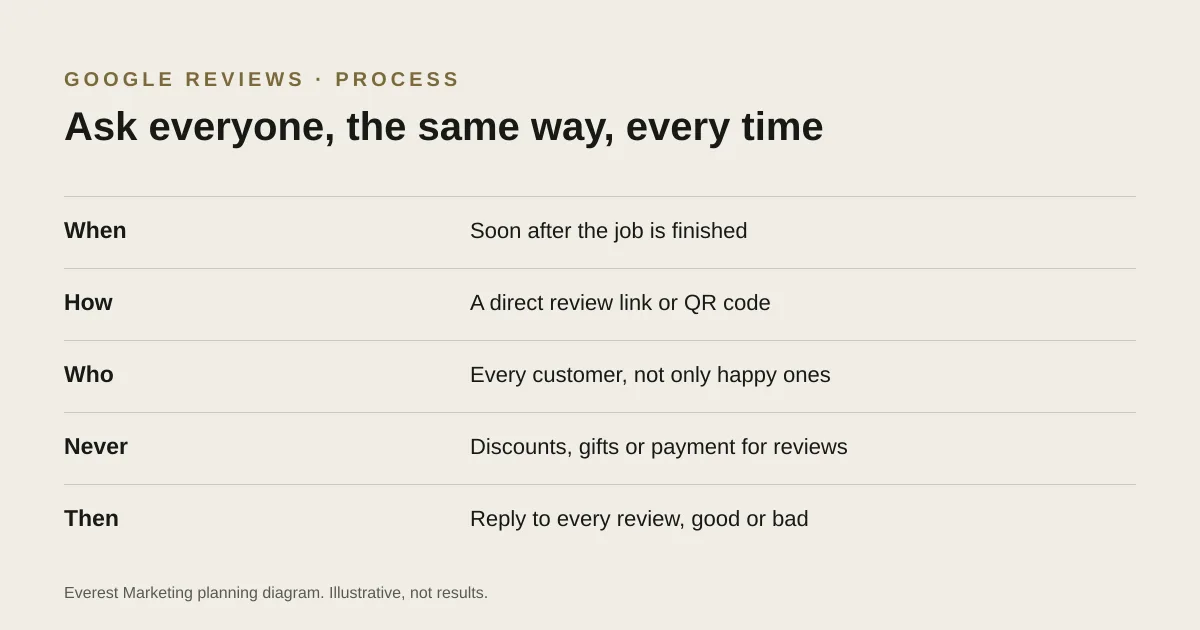
A customer who had a good experience may not think to leave a review unless someone asks. The aim is a routine: the same request, sent at the same point, to everyone. That keeps it honest and makes it easy to keep doing when things get busy.
The rules first
Google’s policy on fake engagement is specific. Businesses must not:
- Offer incentives such as payment, discounts, free goods or services in exchange for a review, or for removing a negative one.
- Discourage negative reviews or selectively ask for positive ones. Sending the request only to customers you think are happy counts.
- Pressure customers to leave a review on the spot, or tell them what to write.
- Review their own business, or have staff or family do it. Reviews based on a conflict of interest are not allowed.
Google also says reviews must reflect a genuine experience, and reviews that break the policy can be removed. In Australia, the ACCC has published guidance for businesses on online reviews, including that businesses must not post fake reviews or suppress genuine negative ones. Read the current ACCC page before you design your process; we could only check its published summaries.
When to ask
Ask soon after the job is finished and the customer has seen the result, while it is fresh. For a one-off job that is usually the same day or the next. For longer projects, ask at handover rather than halfway through. Pick one moment and use it every time.
How to ask
Google suggests sharing a direct review link or a QR code, which you can get from your Business Profile. A link that opens the review form saves the customer from searching for you. Customers need to be signed in to a Google account to leave a review.
Text message
Hi [first name], thanks for having us out today. If you have a minute, we’d appreciate a Google review of how the job went: [review link]. It helps other people in [area] find us. Thanks, [your name], [business].
Subject: How did we go? Hi [first name], thanks again for choosing [business] for [job]. We ask every customer for a review, and we’d value yours, whatever you thought of the job: [review link]. If anything wasn’t right, you can also reply to this email and we’ll sort it out. [your name]
In person, or on a card
We ask everyone for a Google review. Scan this if you’re happy to leave one: [QR code].
Notice what these leave out: no “if you were happy with our work”, no offer, no suggested star rating. If you also offer a way to raise problems directly, send it alongside the review link to everyone, never instead of it.
Make it a routine
- Save your Google review link and QR code where your team can find them.
- Choose one trigger: job marked complete, invoice paid, or handover.
- Send the same message to every customer at that trigger. Your CRM or job software may be able to send it automatically.
- Send one reminder at most, a few days later. Then stop.
- Check new reviews weekly and reply to each one.
- Keep a simple log: jobs completed, requests sent, reviews received.
If you use a CRM, the review request can be a step in the same workflow as quote follow-up. Our guide to CRM automation for service businesses shows how that fits together.
Replying to reviews
Replies are public, so write them for the next customer reading, not only the reviewer.
- Positive reviews: thank them and mention something specific about the job. Keep it short.
- Critical reviews: reply calmly, acknowledge the issue, avoid sharing private details, and offer a way to talk it through offline. Do not argue in public.
- Reviews you believe are not genuine: do not assume a negative review is fake just because it is negative. If a review appears to break Google’s policy, you can report it through your Business Profile.
What reviews do, and do not do
Reviews help people choose between businesses, and they are part of how a Business Profile presents you. They are one factor among many in local search, not a switch that guarantees a ranking. For the rest of the picture, see our local SEO guide and, for trade businesses, SEO for tradies.
Sources
- Maps user-generated content policy: fake engagementGoogle, accessed 28 October 2026. No incentives for reviews; no discouraging negative reviews or selectively soliciting positive ones
- Tips to get more reviewsGoogle Business Profile Help, accessed 28 October 2026. Share a Google review link or QR code; reviews must reflect a genuine experience
- Managing online reviewsAustralian Competition and Consumer Commission, accessed 28 October 2026. The ACCC site blocked our automated checker; the points cited were taken from the ACCC’s published page summaries. Read the current page
- Guidelines for representing your business on GoogleGoogle Business Profile Help, accessed 28 October 2026. Service-area businesses should hide their address; virtual offices are not eligible unless staffed